

Revolutionary Foot Mouse
Meet xStep: The Foot-Operated Wireless Mouse
Revolutionizing Accessibility and Productivity
The xStep foot mouse is the perfect solution for anyone who cannot, or chooses not to, use a traditional hand-operated mouse. xStep offers freedom, efficiency, and precision for work, play, and everything in between.
01
Wireless Connectivity
Operates seamlessly up to 10 meters
02
Rechargeable Battery
Eco-friendly and built for extended use with power-saving mode
03
Ergonomic Design
Comfortable foot operation with or without shoe, ideal for both office and home enviroement
04
Precision Performance
1600 DPI for smooth and accurate pointer movement.
How to Use
01
Foot Positioning
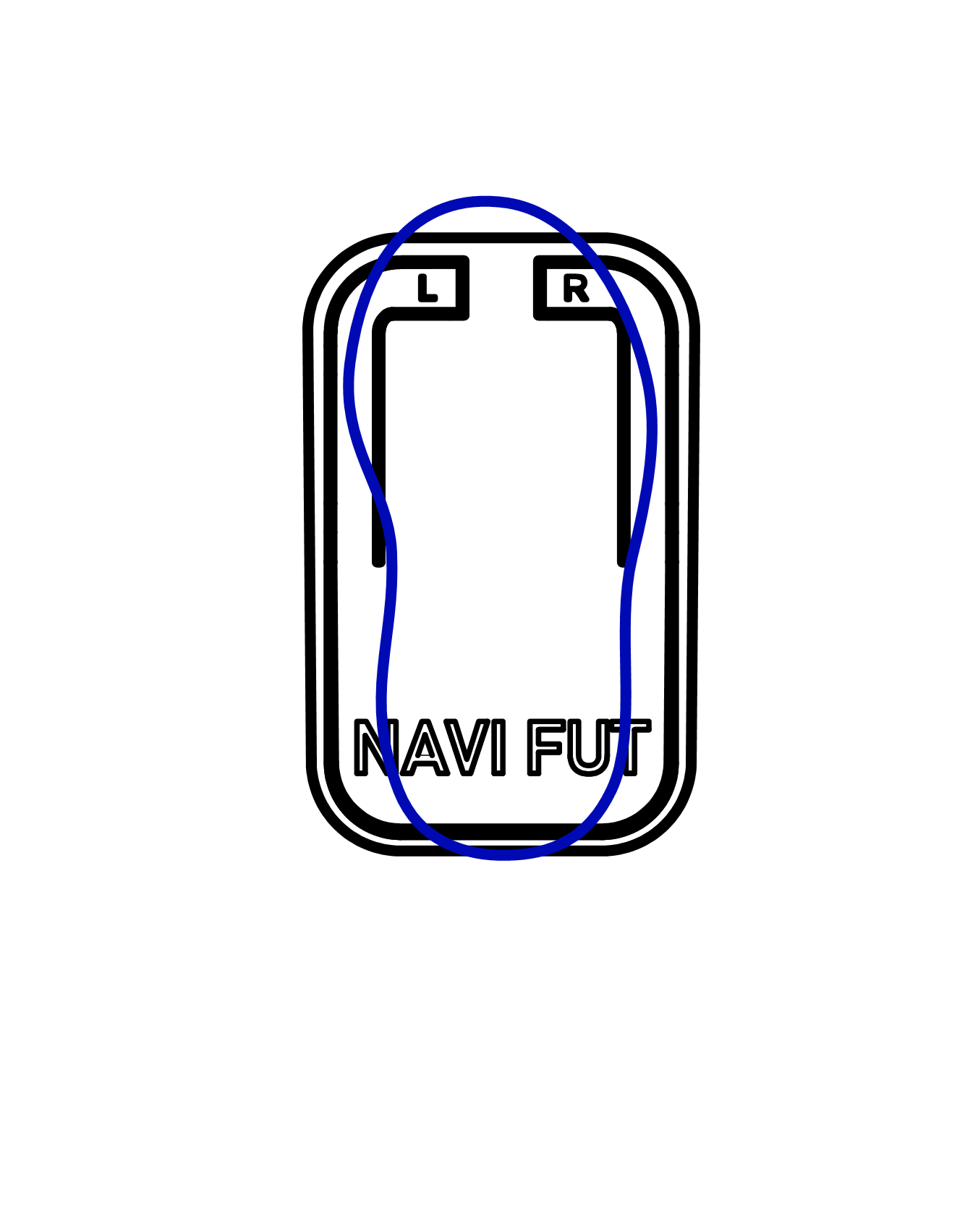
Place your foot on xStep Mouse in a centered positionl
02
Weight Placement
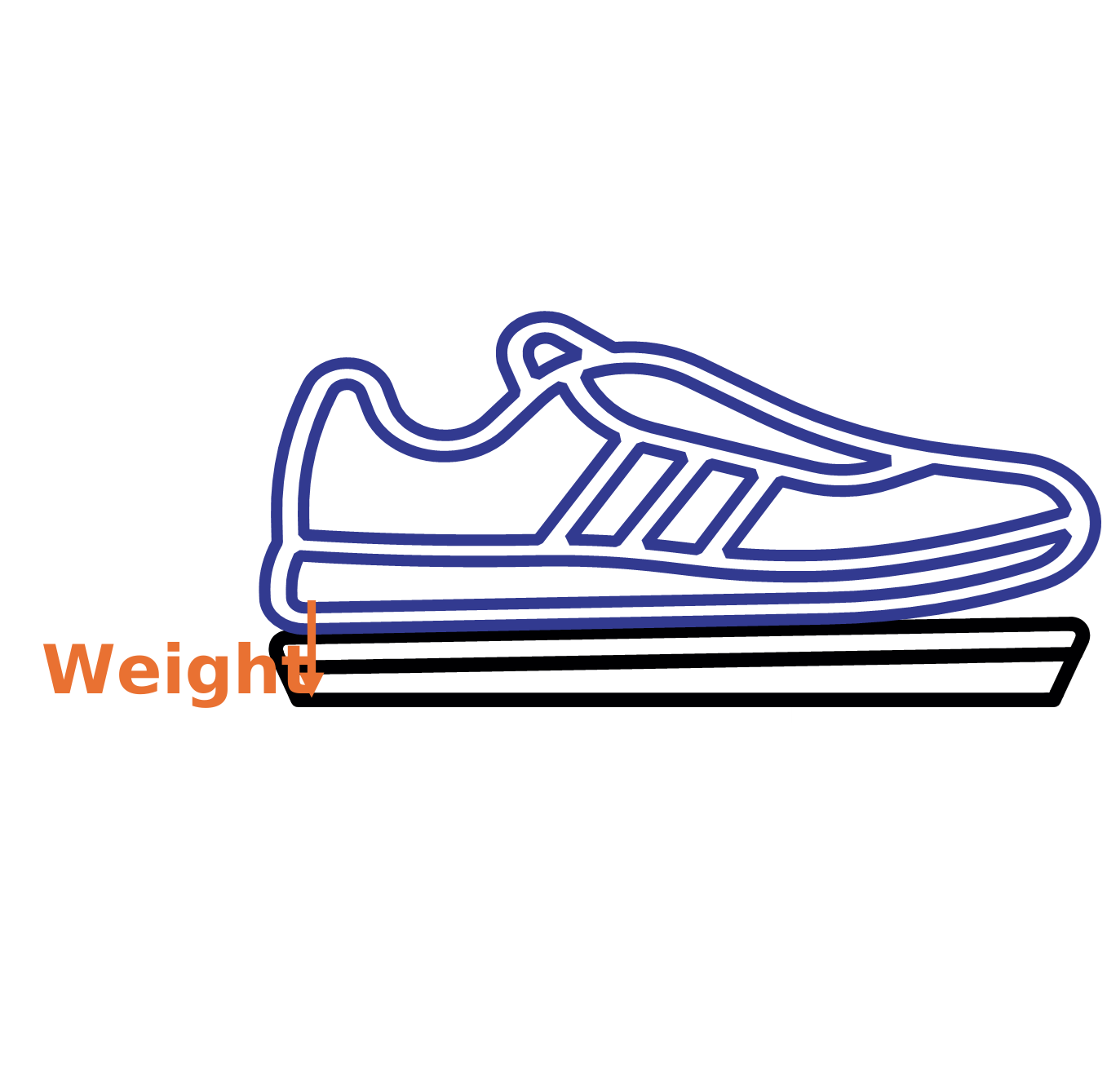
For your comfort, we suggest placing the weight on your heel
03
Knee position
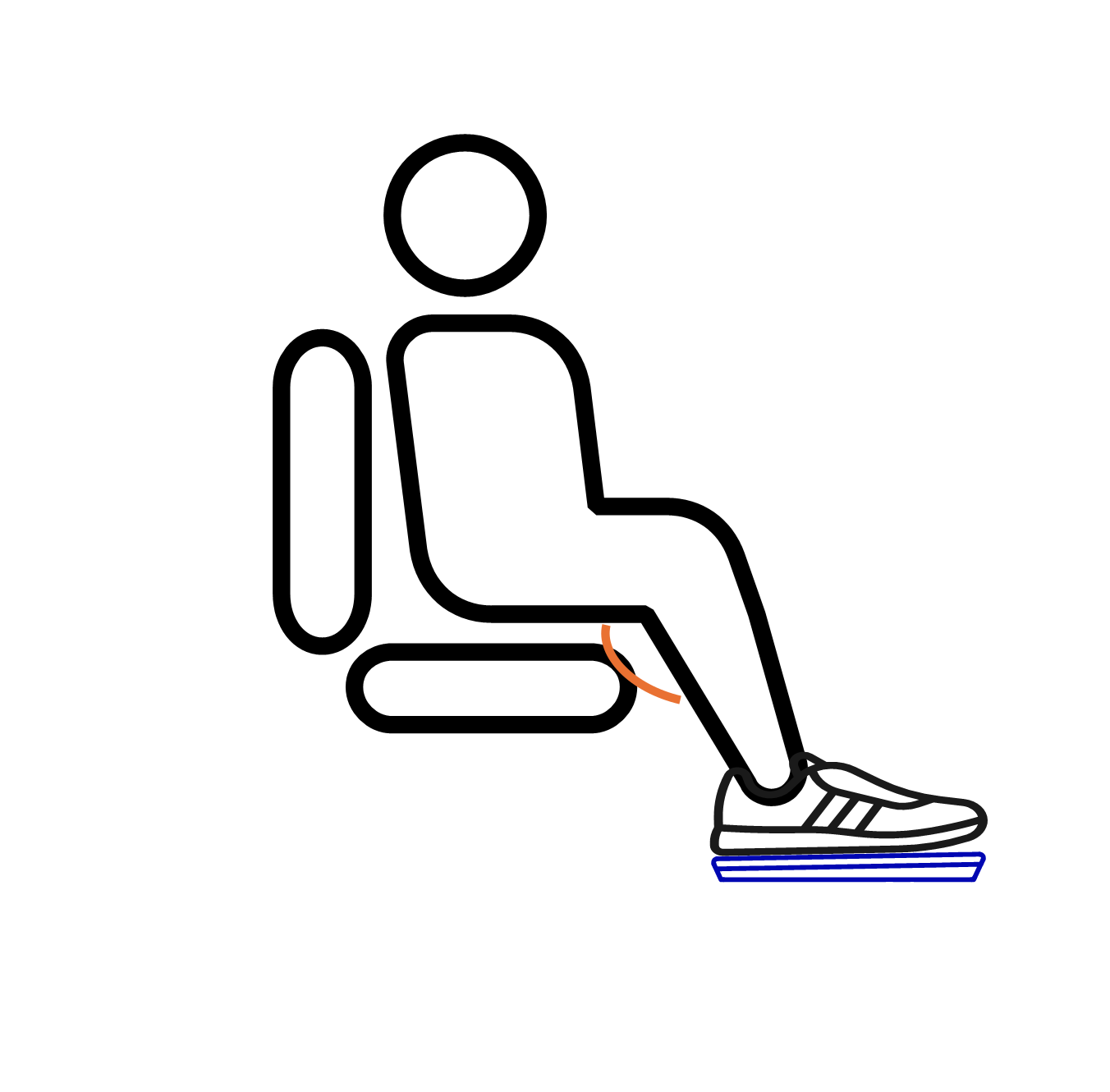
We recommend keeping the knee at slightly more than 90 degrees for better maneuverability and reduced strainl
04
Cursor Pointing
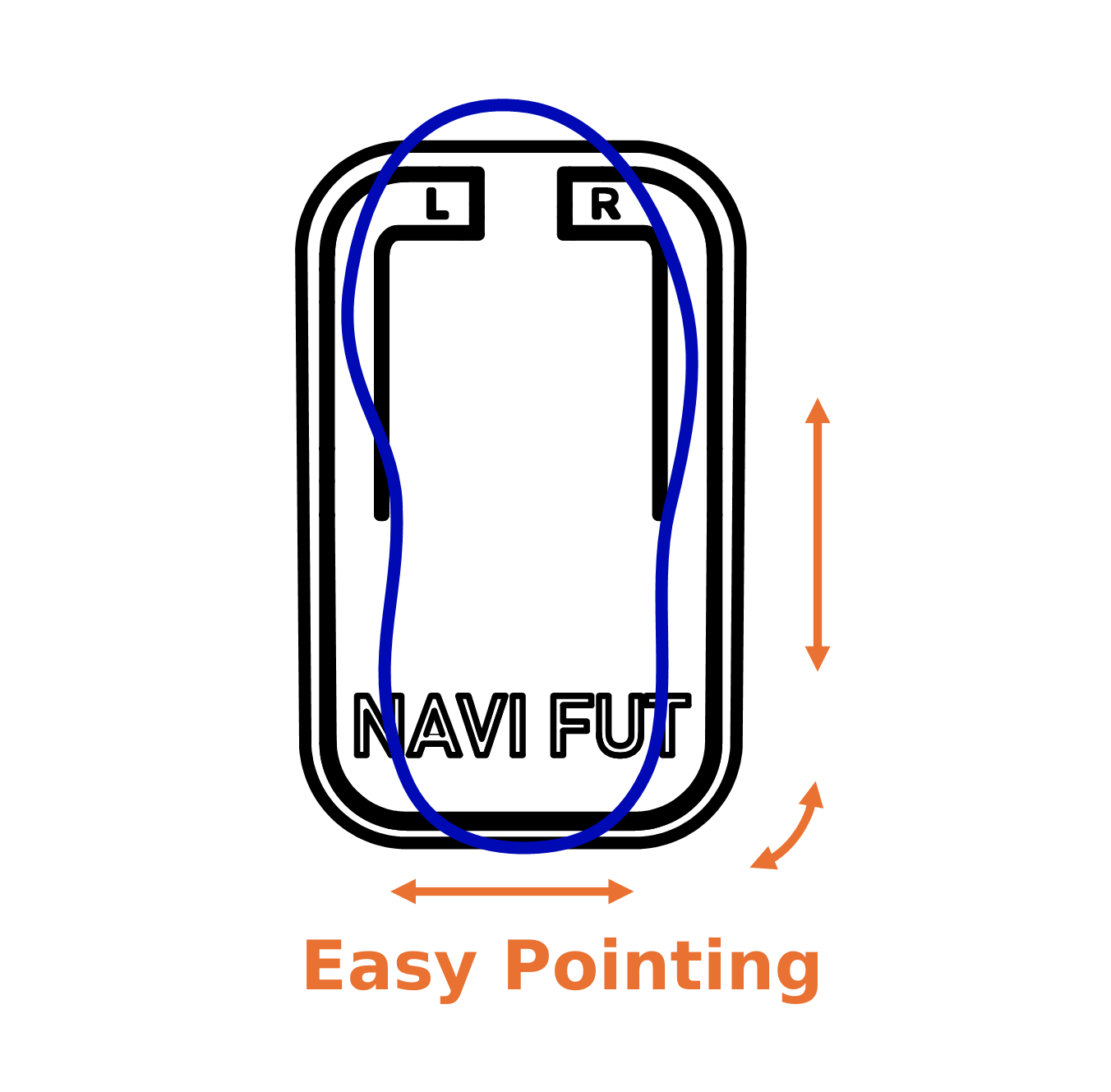
The mouse pointer works as a usual hand mouse by moving and rotating the foot
05
Left and Right click
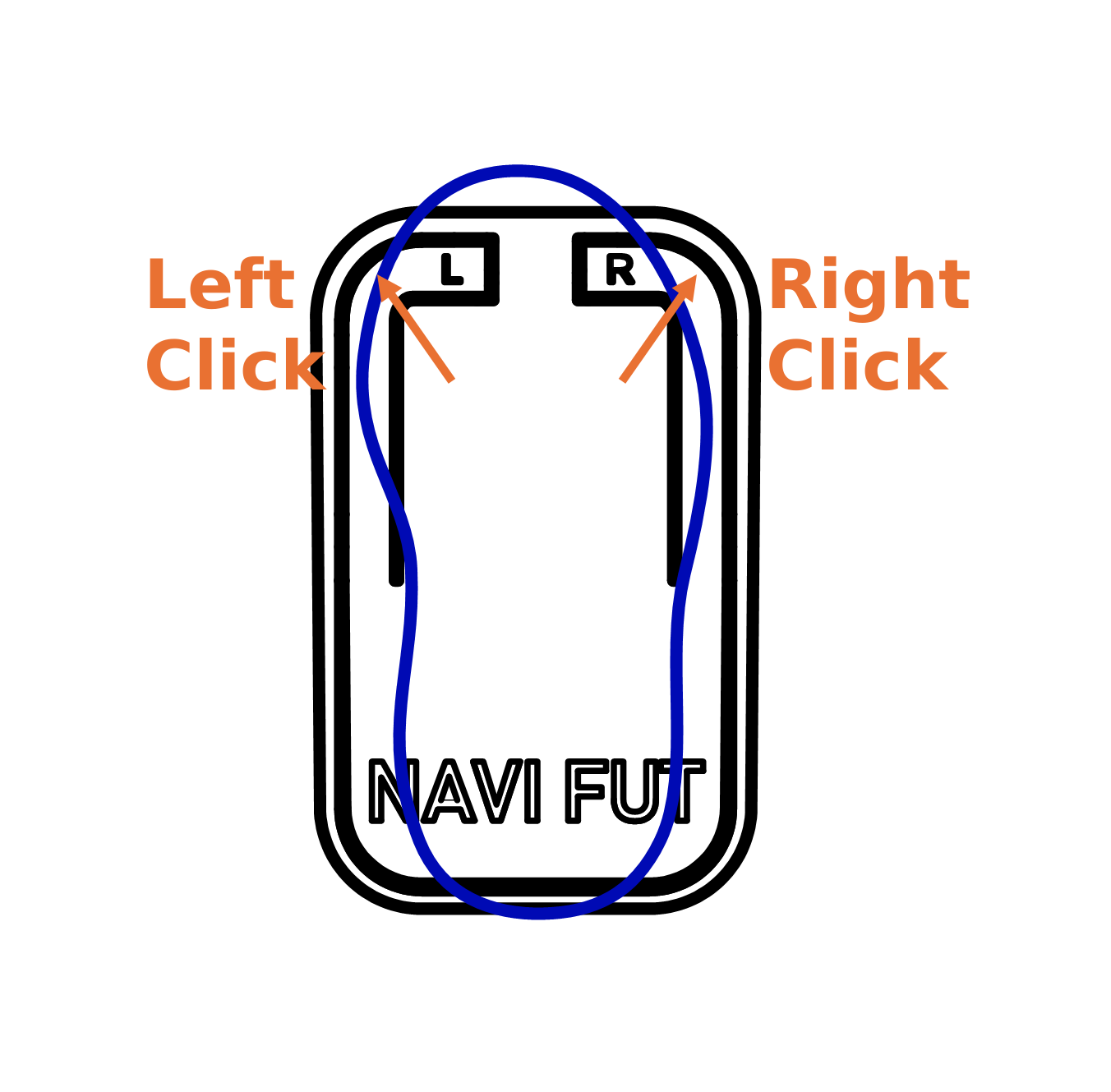
To perform a click, slightly tilt the foot toward the desired direction. A light pressure is enough, do not over press
06
Enjoy!
Enjoy! Rember to take regular pauses to help your body getting used to the foot control. With some practice, you will get incredibly precise!


Effortless Control at Your Feet
xStep is simple and intuitive—just plug it in and start controlling your cursor with smooth foot movements. It allows both precise pointing and effortless clicking, making it a complete hands-free alternative.
Designed for all foot sizes and fully compatible with either the left or right foot, xStep offers seamless integration without compromising comfort or accuracy.
xStep Foot Mouse in Action
See the foot-operated mouse in action! In this video, we show a split-screen demo: on the left, you can watch the device being controlled with the foot, while on the right you’ll see the live results on a PowerPoint slide. From simple left and right clicks to moving and pointing, the NaviFut makes it easy to interact with your computer without relying on your hands.
This demonstration highlights how intuitive and responsive the device is, making it a practical solution for anyone who wants to reduce strain, improve ergonomics, or simply explore a new way of working.
Want to see more? Watch our demos on YouTube
Tips for an Optimal Use
Flat Surface
Use XStep Foot Mouse on a flat surface. If the surface is rough, we recommend using any standard mouse pad.
Pairing with a Foot Pedal
For tasks requiring intensive clicking, pair the foot mouse with a foot pedal. Use the foot mouse for pointer control, and the foot pedal for clicking. To master this solution, we suggest using a dedicated free software to manage the different input devices
Getting Comfortable with Foot Control
Practice for a few hours to improve precision. Over time, your sensitivity and accuracy will be on par with a traditional hand-operated mouse.
Physical Benefits
The broader range of motion involved with the foot mouse offers mild exercise, improving circulation and overall health.
Footwear Options
The XStep Foot Mouse works comfortably with shoes or slippers, providing flexibility based on your preference.
Rechargeable & Smart Standby
The xStep mouse has a rechargeable battery lasting up to 30 days and a smart standby mode: if left unused, it automatically goes into standby. Press any click button to reactivate instantly.
Posture and Leg Positioning
Relax your legs in a comfortable position with proper support to prevent repetitive strain injuries. Keep your knee at a 90-degree angle or slightly more to avoid discomfort. A smaller angle may cause strain or fatigue over time.
Switch Left and Right Clicks and adjust Speed
Adjust in your operating system’s settings to suit your needs. Fine-tune the sensitivity to match your preferences using the DPI settings.
Adjust Double-Click Speed
Often a double click using the foot tends to be slower than with hand mouse. To be sure the command is properly recognized by the PC, it is advised to change the double-click speed in the settings according to your preferences:
Prevent Fatigue
Rest your feet, ankles, and legs every 30 minutes to avoid strain. Regular stretching and adjusting your seating position help reduce the risk of repetitive strain injuries.
Pair with Dictation Software
For an even more efficient hands-free setup, the foot-operated mouse can be paired with voice dictation software like Dragon or built-in speech-to-text tools.
Slow or Unresponsive Cursor
Sometimes the cursor may feel less responsive even before the battery is fully depleted. If you notice reduced tracking accuracy or delayed movement, it’s likely that the battery is running low.
A quick recharge will restore full performance.