Revolutionary Foot Mouse
Meet xStep: The Foot-Operated Wireless Mouse
Revolutionizing Accessibility and Productivity
The xStep foot mouse is the perfect solution for anyone who cannot, or chooses not to, use a traditional hand-operated mouse. xStep offers freedom, efficiency, and precision for work, play, and everything in between.
01
Wireless Connectivity
Operates seamlessly up to 10 meters
02
Rechargeable Battery
Eco-friendly and built for extended use with power-saving mode
03
Ergonomic Design
Comfortable foot operation with or without shoe, ideal for both office and home enviroement
04
Precision Performance
1600 DPI for smooth and accurate pointer movement.
How to Use
01
Foot Positioning
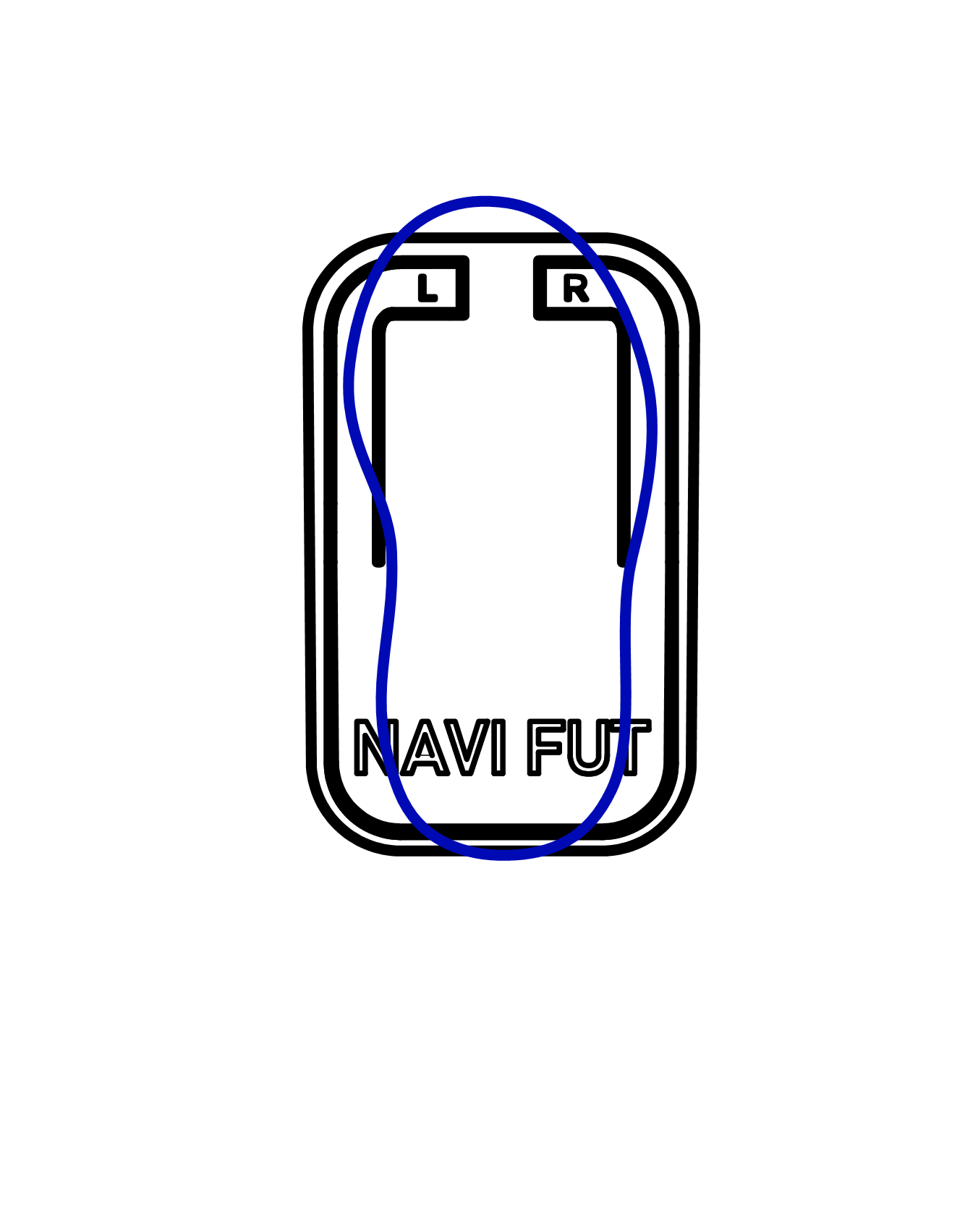
Place your foot on xStep Mouse in a centered positionl
02
Weight Placement
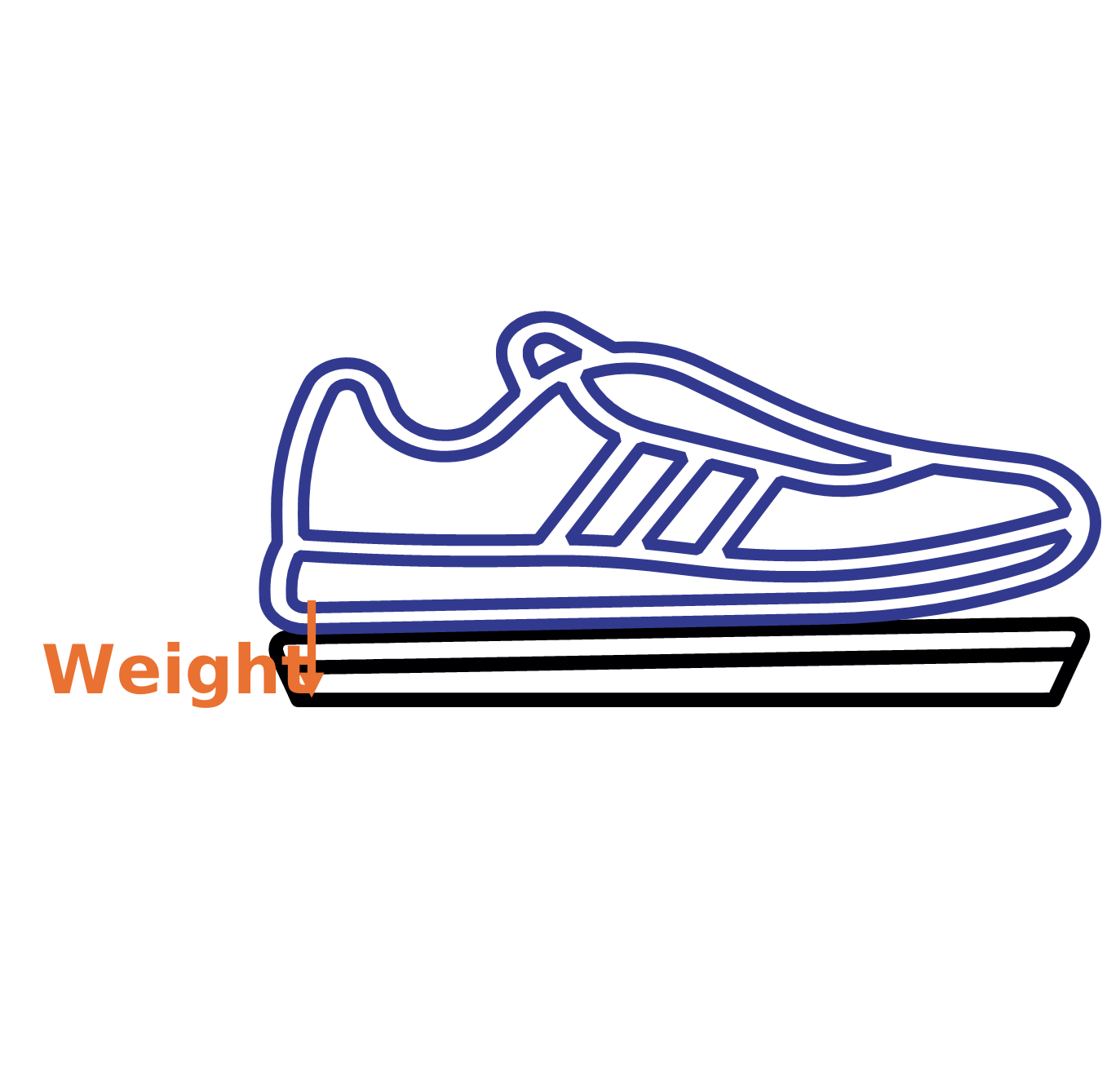
For your comfort, we suggest placing the weight on your heel
03
Knee position
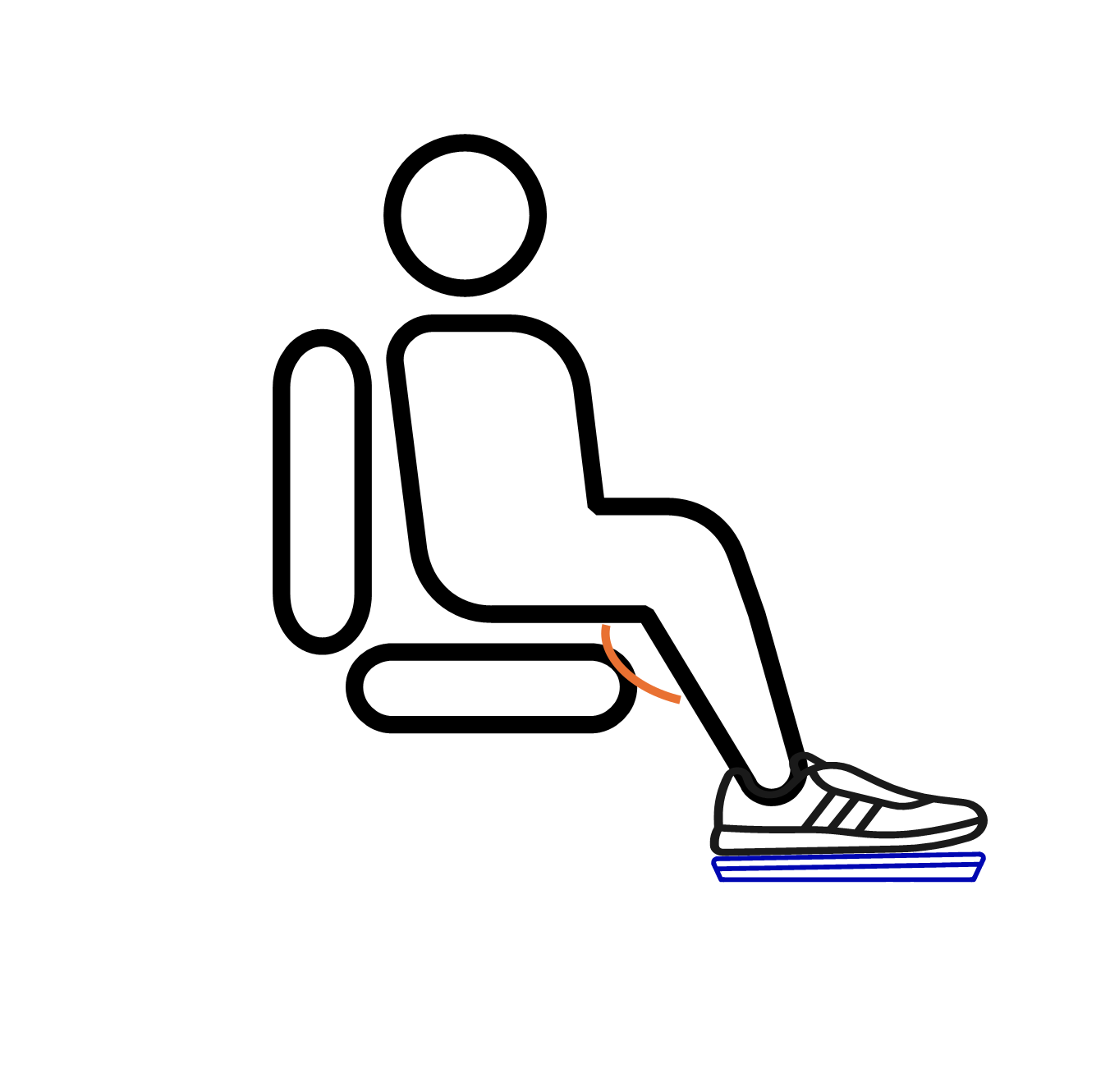
We recommend keeping the knee at slightly more than 90 degrees for better maneuverability and reduced strainl
04
Cursor Pointing
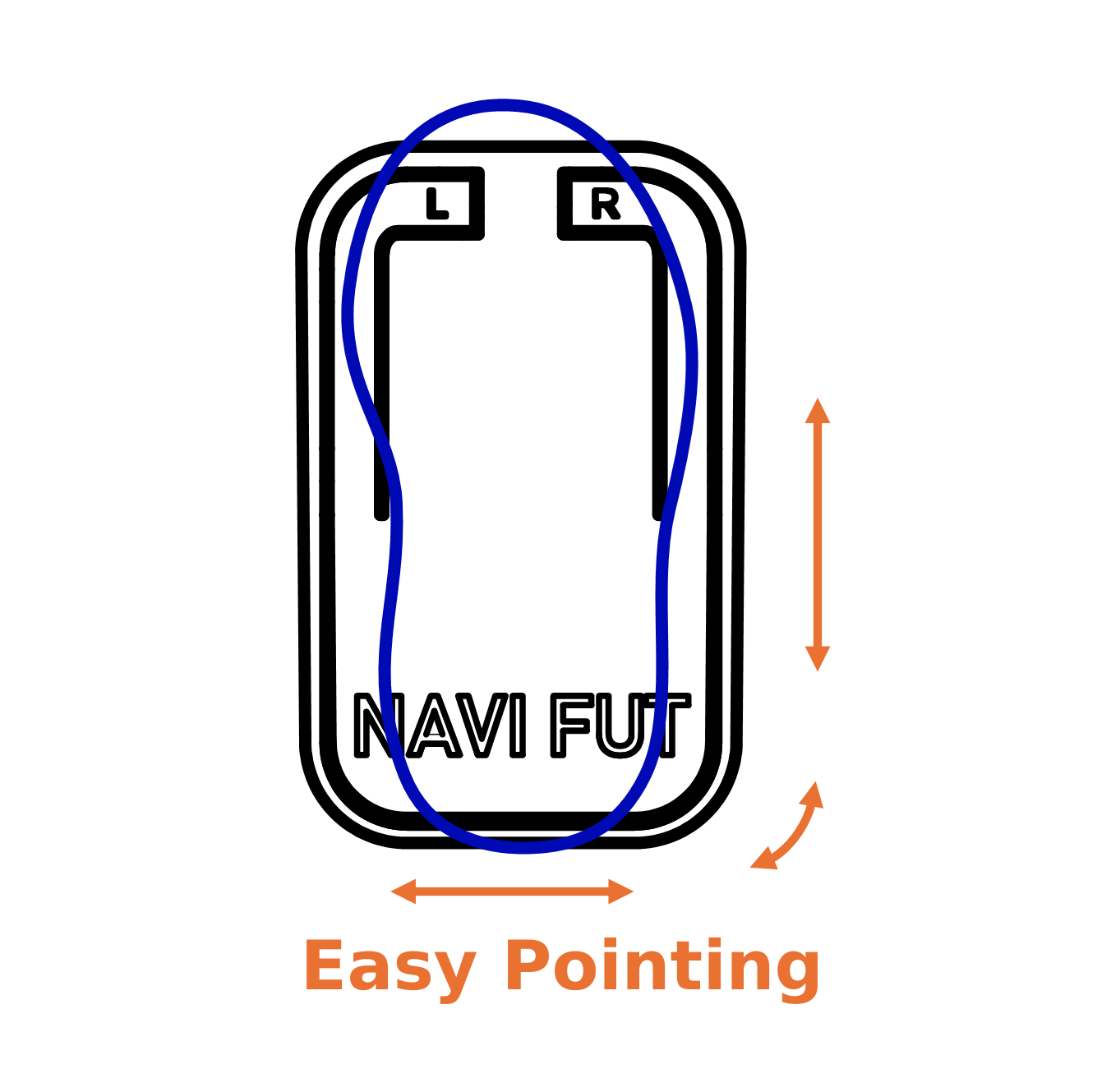
The mouse pointer works as a usual hand mouse by moving and rotating the foot
05
Left and Right click
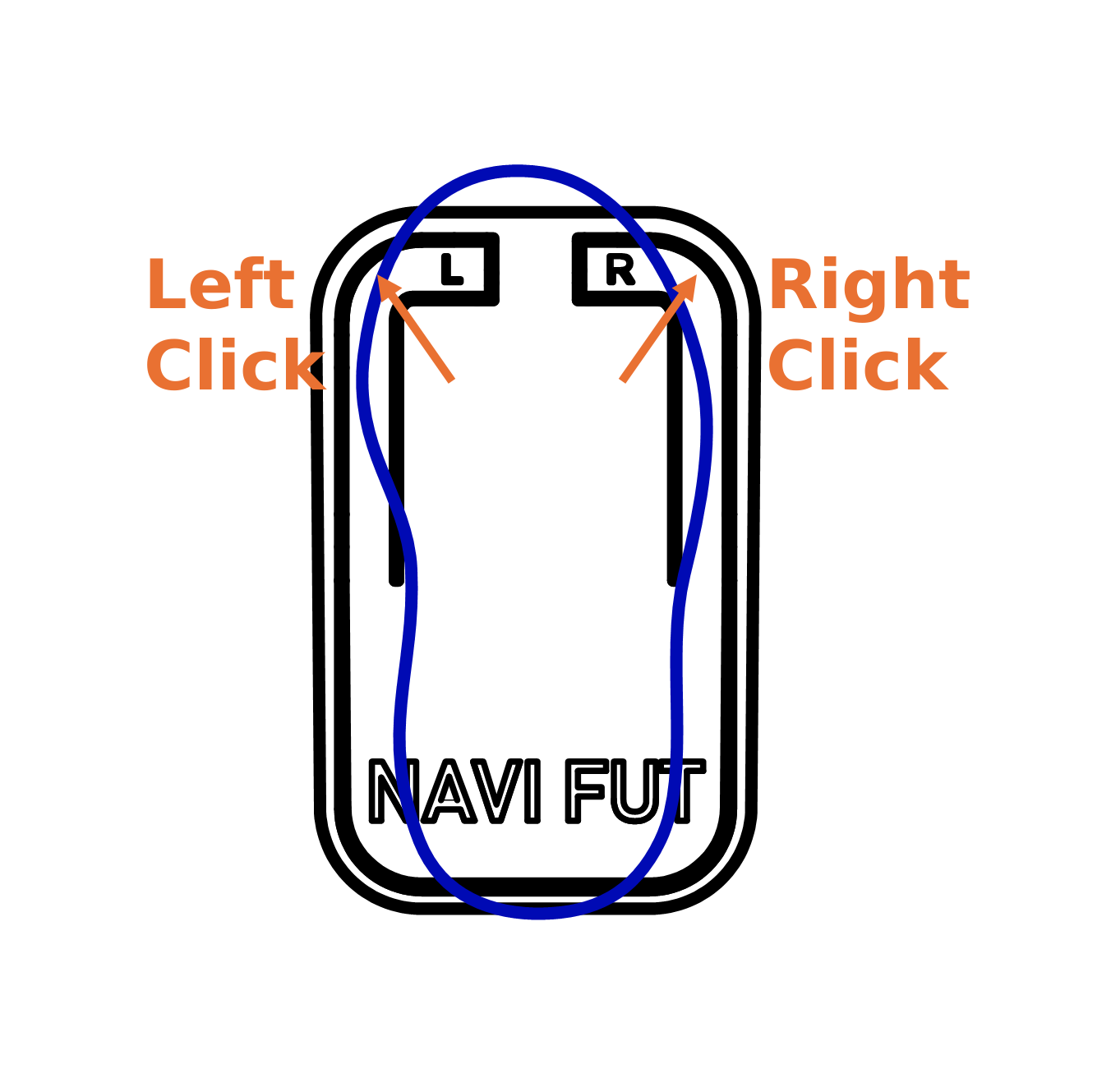
To perform a click, slightly tilt the foot toward the desired direction. A light pressure is enough, do not over press
06
Enjoy!

Enjoy! Rember to take regular pauses to help your body getting used to the foot control. With some practice, you will get incredibly precise!


Effortless Control at Your Feet
xStep is simple and intuitive—just plug it in and start controlling your cursor with smooth foot movements. It allows both precise pointing and effortless clicking, making it a complete hands-free alternative.
Designed for all foot sizes and fully compatible with either the left or right foot, xStep offers seamless integration without compromising comfort or accuracy.
Tips for an Optimal Use
Flat Surface
Use XStep Foot Mouse on a flat surface. If the surface is rough, highly reflective or transparent, we recommend using any standard mouse pad to improve the tracking accuracy.
Pairing with a Foot Pedal
For tasks requiring intensive clicking, pair the foot mouse with a foot pedal. Use the foot mouse for pointer control, and the foot pedal for clicking. To master this solution, we suggest using a dedicated free software to manage the different input devices
Getting Comfortable with Foot Control
Practice for a few hours to improve precision. Over time, your sensitivity and accuracy will be on par with a traditional hand-operated mouse.
At the beginning, we recommend using the foot mouse with socks or barefoot, as this offers greater sensitivity and helps you get familiar with the controls more easily. You can then gradually transition to using it with shoes.
Physical Benefits
The broader range of motion involved with the foot mouse offers mild exercise, improving circulation and overall health.
Footwear Options
The XStep Foot Mouse works comfortably with shoes or slippers, providing flexibility based on your preference.
Rechargeable & Smart Standby
The xStep mouse has a rechargeable battery lasting up to 30 days and a smart standby mode: if left unused, it automatically goes into standby. Press any click button to reactivate instantly.
How to scroll up/down with your foot mouse
You can use your foot mouse also to scroll up/down or left/right on your page. With a free software called AutoHotkey, you can set up a simple script that activates a scroll mode with a double right-click – letting you scroll any page or document just by moving your foot, with no hands involved at all. We put together a full step-by-step guide to get it running in under 5 minutes (Read the full setup guide here)
How to properly charge your foot mouse
We recommend charging your foot mouse with a standard phone charger with an output power between 10 and 25 W. A green light should turn on while the device is charging. Charging directly from a computer’s USB port may provide insufficient power for proper charging, while using a high-power charger, such as a laptop charger (typically around 65 W), may result in improper charging or potentially damage the device.
If you experience imprecise operation
If NaviFut becomes laggy, imprecise, or clicks/ cursor do not respond correctly, recharge it fully. Even if the sensor light is still on, the battery may be too low for reliable operation. Please use a standard phone charger (10–25 W), not a computer USB port or high-power laptop charger (65 W or more).
Posture and Leg Positioning
Relax your legs in a comfortable position with proper support to prevent repetitive strain injuries. Keep your knee at a 90-degree angle or slightly more to avoid discomfort. A smaller angle may cause strain or fatigue over time.
Switch Left and Right Clicks and adjust Speed
Adjust in your operating system’s settings to suit your needs. Fine-tune the sensitivity to match your preferences using the DPI settings.
Adjust Double-Click Speed
Often a double click using the foot tends to be slower than with hand mouse. To be sure the command is properly recognized by the PC, it is advised to change the double-click speed in the settings according to your preferences:
Prevent Fatigue
Rest your feet, ankles, and legs every 30 minutes to avoid strain. Regular stretching and adjusting your seating position help reduce the risk of repetitive strain injuries.
Pair with Dictation Software
For an even more efficient hands-free setup, the foot-operated mouse can be paired with voice dictation software like Dragon or built-in speech-to-text tools.
Slow or Unresponsive Cursor
Sometimes the cursor may feel less responsive even before the battery is fully depleted. If you notice reduced tracking accuracy or delayed movement, it’s likely that the battery is running low.
A quick recharge will restore full performance.
Posture tip for balanced use
To help maintain a balanced and comfortable posture while using NaviFut, it may be useful to keep your hips level by placing your non-active foot on a small object of similar height to the device (for example a book or a thin box) . This helps ensure a more natural alignment of the pelvis and can reduce asymmetry during longer use sessions.
Foot position
Your foot does not need to cover the entire width of the mouse. The left and right buttons are designed to be pressed from their inner edges as well. If you have a narrower foot or are using the device barefoot, try positioning your foot closer to the center of the mouse and press the inner part of each button.