
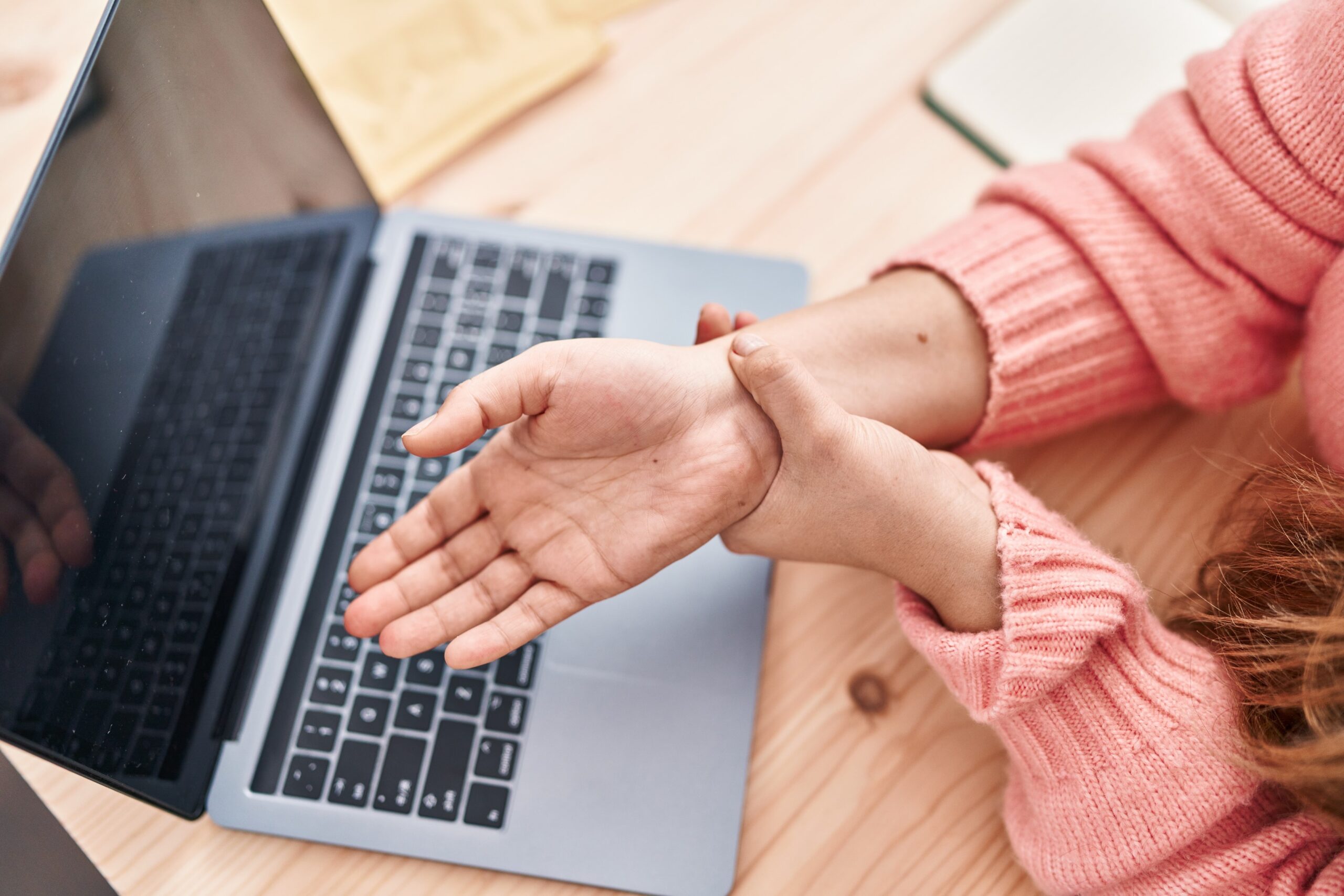
If you’re reading this, you’re probably in a frustrating situation – your hands or wrists hurt, a normal mouse is making it worse, and you’re trying to figure out what to do instead. I’ve been there. I spent over two years trying pretty much every alternative available before eventually building my own solution. This article is a summary of what I tried, what worked, what didn’t, and who each option realistically suits.
I’ll focus only on mouse alternatives here – keyboards, voice dictation and ergonomic desk setup are a separate topic for another time.
Disclaimer: the links mentioned in this article are not sponsored products and no referral is paid. They are purely based on my personal experience.
1. Vertical mice

A vertical mouse holds your hand in a “handshake” position, which reduces forearm rotation and puts your wrist in a more natural angle. This is almost always the first thing recommended when someone starts having wrist or hand pain, and for good reason – it’s easy to try, relatively affordable, and can make a difference for mild cases.
The most popular option is the Logitech MX Vertical which is well built and reliable. For smaller hands the Logitech Lift is worth considering instead.
From my personal experience: the vertical mouse helped initially, but as my symptoms worsened it stopped being enough. The reason is that it changes the angle of your wrist but your fingers still have to do all the clicking and fine movements and your wrist move to point the cursor. If your RSI is already progressed beyond very mild, a vertical mouse alone won’t solve it.
Best for: Early symptoms, people who want a simple drop-in replacement with no learning curve.
Not ideal for: Moderate to severe RSI, anyone with significant finger, tendon or wrist involvement.
2. Trackball Mice

In a trackball mouse you control the cursor by rotating a sphere (the “trackball”) with either your thumb, fingers, or sometimes the whole hand depending on the design. Because the device itself stays stationary, this changes the movement pattern compared to a normal mouse and can initially provide some relief for wrist or forearm strain.
Some of the most popular trackball mice are the Logitech MX Ergo or the Kensington Expert Mouse. Thumb-operated models such as the MX Ergo are among the most common, while larger centered trackballs like the Kensington are controlled more with the fingers or the whole hand.
From my personal experience, this different type of movement can help somewhat in the beginning because the wrist movement is reduced compared to a standard mouse. However, one should still keep in mind that trackballs continue to require heavy use of the hand, fingers, and often the thumb. In particular, thumb-operated models can potentially create additional strain on the thumb tendon with prolonged use. Clicking is also still performed with conventional mouse buttons, meaning finger strain may remain an issue.
Another limitation is that trackballs are often slightly less precise and intuitive than a regular mouse, especially for detailed or fast cursor movements. Some users adapt very well to them, while others never become fully comfortable.
Similarly to vertical mice, I personally tried trackballs as part of my RSI journey, but they were ultimately not sufficient once symptoms became more significant.
Best for: Mild RSI symptoms, users wanting to reduce wrist movement without changing their setup too drastically.
Not ideal for: Moderate to severe RSI, thumb tendon issues, or conditions where reducing hand and finger usage is the primary goal.
3. Switching to your non-dominant hand
This is a common strategy rather than a product. The idea is simple: if your right hand hurts, use the mouse with your left hand and give the right one a break (or vice versa).
In principle it makes sense but in practice most people find that the non-dominant hand adapts poorly and quickly. The less trained hand tends to use more muscle tension to compensate for lower dexterity, which can cause the same symptoms to develop in the other hand within weeks. I tried this myself and abandoned it after about two weeks when my left hand started showing the same early symptoms.
It can work as a very short-term bridge while you find a better solution, but it’s unlikely to be sustainable long term. It also does nothing to address any underlying posture or desk setup issues that may be contributing to the problem.
Best for: Short term rest for the dominant hand while transitioning to another solution.
Not ideal for: Long term use or anyone already showing symptoms in both hands.
4. Drawing tablets (pen tablets)

A drawing tablet like the Wacom One lets you control the cursor by moving a pen across a flat surface, with tapping or pressing a button to click. The movement feels more like writing or drawing than traditional mousing, which uses slightly different muscles/tendons and can provide real relief.
I used a Wacom tablet for a few months and it helped during that period. The pen movement is lighter and more varied than repetitive mouse clicking, and it takes some of the load off the wrist.
The limitation is that it still involves your hand, fingers and wrist actively – it’s not a rest, it’s rather a redistribution. For people with mild RSI it can be a very effective long-term solution. For people with severe symptoms it may only delay the problem rather than solve it.
Best for: Mild RSI, people who do creative or design work where a pen feels natural, anyone who can tolerate some hand use.
Not ideal for: Intermediate to severe RSI or anyone who needs complete rest from hand use.
5. Head-controlled mice
Head mice use a camera or sensor to track your head movements and translate them into cursor movement. Some use a small reflective dot placed on your forehead or glasses, others use webcam-based face tracking with no accessories needed. Examples include the AbleNet TrackerPro 2 at the hardware end, or software options like Smyle Mouse which works with a standard webcam.
The clear advantage is that hands are completely removed from the equation. For people with severe upper limb disabilities or injuries, this can be the only viable option.
The honest downside, which I’ve heard consistently from people who have tried these: precision is low and fatigue builds quickly from sustained head movement. Doing detailed work – navigating complex software, clicking small UI elements, anything requiring fast or precise cursor control – becomes slow and tiring. Most people find these workable for very light computer use but very limiting for professional or high-volume work.
Costs also vary widely. Software solutions can be cheap but not very accurate. Dedicated hardware runs into several hundred to thousand dollars.
Best for: People with severe hand or upper limb conditions where no hand use is possible, light computer use.
Not ideal for: Full day professional use, work requiring precision or speed.
6. Foot mice

Foot mice transfer cursor control and clicking entirely to the foot. The concept existed in niche forms for some years – the 3D Rudder and the Footime Mouse were interesting products, though not anymore produced – but dedicated foot mice designed for daily computer work remain rare.
This is what I eventually built myself, after exhausting the other options. The xStep by NaviFut works by resting your foot on the device with your heel as a natural pivot point. Moving your foot moves the cursor, and a rolling motion left or right triggers the click buttons – no hands involved at all.
The advantage over head mice is precision – the foot has a large range of natural movement and with some practice achieves cursor control comparable to a regular mouse. The advantage over all the other options is complete hand rest since your hands stay entirely free while you work.
There is of course some learning curve to train your foot and leg but most people need a few days to get comfortable, and a week or two for reliable precision. Starting barefoot or with socks makes it easier but once it clicks, it becomes natural.
Best for: Moderate to severe RSI, anyone who needs complete and sustained rest from hand use while still working productively, people who spend most of their time typing and only occasionally need the mouse.
Not ideal for: People who need only minor ergonomic improvement, or anyone with foot, ankle or leg conditions.
Summary
There is no single right answer – the best option depends entirely on how severe your symptoms are and what kind of work you do. My general progression would be:
- Mild symptoms → try a vertical mouse first, it’s low risk and low cost. Alternatively, a pen table or trackaball can also be good solutions
- Moderate to Severe symptoms or need for complete hand rest → foot mouse or head mouse, depending on precision needs
If you have questions about any of these options or want to know more about the NaviFut xStep specifically, feel free to write to us at info@navifut.com.


Lascia un commento